Customers in Germany are reporting the network problems while using
iPhone 4S. This particular issue arises when an already activated
micro-SIM card (For example, from the iPhone 4), which is protected by a
PIN, is placed in the iPhone 4S. The problem is not related to any
disruptions in network or a defect in the SIM card and
the abnormality is observed by all network providers and is not a
telecom-specific problem. Tea-Mobile is working with Apple and has provided a temporary solution, till the Apple pushes an update to mobile operating system iOS 5.
Step 2: Choose menu “SIM PIN”
Step 3: Move the slider to off (0)
Step 4: You will be prompted to enter the PIN. Enter your four-digit PIN and confirm by pressing “Done” at the top.
Step 5: Now you can see, the PIN code request is turned off for your Micro-SIM.
Step 6: Set this now into your new iPhone 4S.
Answers to some of your questions if your phone freezes, locks up, or becomes unresponsive
There are a number of reasons why your Samsung Galaxy S II may freeze or become unresponsive, including:
The update also brings features such as Contact Categories, list sorting and filtering in BBM Groups and performance improvements.
Here’s what’s new in BBM 1.0.2:
Let us know if it has fixed the crashing issues in the comments below.
1. How to solve the iPhone 5 Wifi connection problems
3. How to handle unworkable power button issues
Many
iPhone 5 users are tired of the power button issues, for the power
button does not response well. Sometimes, the iPhone 5 power buttons
require multiple pushes to make it workable. Sometime, the power button
acts less responsive if you only hold down the right side, while
responds normally when you press the left side.
(Editor’s Note by Jeffrey Van Camp: Our iPhone 5S here at DT has rebooted randomly a few times since we got it in September, but we have not experienced a blue screen of death. Apps do crash more frequently, but these are usually apps that haven’t been updated to iOS 7.)
Workarounds:
(Editor’s Note by Jeffrey Van Camp: We have not had trouble with the sensors on our iPhone 5S, though we do experience occasional ticks in the parallax effect on the home screen, which moves the background of the phone to produce a 3D effect.)
Potential solution:
Your only option right now is to take the iPhone 5S back to the Apple Store and ask for a replacement, but be warned, many customers who have done exactly that are reporting that their replacement iPhone 5S has the same issues. It’s not clear if this is a hardware or software fault. If it is software-related, we expect an update to fix it, but until Apple acknowledges the issue, it’s a mystery.
(Editor’s Note by Jeffrey Van Camp: From our experience using the iPhone 5S, the Touch ID Home button may have a slightly louder click and the power button does rattle if you put your ear up to the phone and shake, but these problems didn’t bother us. In fact, I never noticed them until I read that others were annoyed by it. As for the battery issue, we have not encountered it, but it is not normal and would be a serious problem.)
Potential solution:
(Editor’s Note by Jeffrey Van Camp: On our iPhone 5S unit, we do have to enter a password every 5-10 purchases. This is annoying, but appears to be intended for security purposes. Hopefully Apple will lax up on passwords more in the future.)
Solution:
Potential solutions:
Potential solutions:
How to disable the PIN code request of micro-SIM used in iPhone 4S
Step 1: Select the Startup Screen “settings” and then “Phone”Step 2: Choose menu “SIM PIN”
Step 3: Move the slider to off (0)
Step 4: You will be prompted to enter the PIN. Enter your four-digit PIN and confirm by pressing “Done” at the top.
Step 5: Now you can see, the PIN code request is turned off for your Micro-SIM.
Step 6: Set this now into your new iPhone 4S.
Answers to some of your questions if your phone freezes, locks up, or becomes unresponsive
There are a number of reasons why your Samsung Galaxy S II may freeze or become unresponsive, including:
- Unstable application
- Low internal memory
- Multiple applications or widgets running at the same time
- Your Samsung Galaxy S II software may need updating
- Why is my Phone battery life inconsistent?
How fast your battery runs down depends on what you do on your Apple iPhone 5. Features like Bluetooth®, GPS, games and web browsing put more strain on the battery than simple features like voice calls and text messages.
- How can I conserve my Phone battery life?
You can lower screen timeout and brightness, turn off idle radios and apps, use Wi-Fi whenever available, and limit your email updates and application notifications.
BBM for iPhone update fixes crashing issue on iOS 7.0.3
That was quick! BlackBerry has just released an update for BBM for iPhone to fix the compatibility related issues reported in iOS 7.0.3.The update also brings features such as Contact Categories, list sorting and filtering in BBM Groups and performance improvements.
- Contact categories
- List Sorting and filtering in BBM Groups
- Performance improvements
- Bug fixes
Let us know if it has fixed the crashing issues in the comments below.
iphone 4 reception issues - design related?
When the guy holds
the iPhone in his hands, touching the outside antenna band in two
places, he drops reception. Placing the phone down gets him 4 bars
1. How to solve the iPhone 5 Wifi connection problems
Plenty
of iPhone 5 users have encountered the Wifi connection problems. They
reported it is hard for their iPhone 5 to connect specific Wi-Fi
networks. The connection is unworkable or unstable. Even if users stand
next to the routers, they found signal strength is too low to do the
connecting. But when they change to other handsets to do the Wi-Fi
connection, it works well.
Solutions: The awful Wifi signal problem may be caused by the
iOS bugs which engender the bad connecting speed or failed entrance of
iPhone 5’s Wifi radios. Hence, Apple launched the iOS 6.0.2 to help fix
the bug. If you still meet the Wifi connection problems, you can try to
restart the phone. Holding down the Home button as well as the Lock
button together for several seconds, you will find the Apple logo then
the iPhone restarts. After restart iPhone 5, try again to do the Wi-Fi
connection.
If the Wifi problem is still unsolved, please try the optional solution
by going to Settings> Wi-fi > Blue icon nearby the network you are trying to connect > Scroll down the bottom > Set the HTTP Proxy to Auto. (Make the URL item blank)
by going to Settings> Wi-fi > Blue icon nearby the network you are trying to connect > Scroll down the bottom > Set the HTTP Proxy to Auto. (Make the URL item blank)
2. Solutions to the iPhone 5 home button problems
The frequent irresponsive home button problems trouble lots of iPhone 5 owners. They are annoyed much by the problems and complain it constantly. Also, the iPhone 5 home buttons are worn out easily by long-term usage.
Solutions: If the iPhone 5 home buttons break accidentally, you can take the phone to Apple Store to get it repaired or replaced when your phone is under warranty. If your phone is out of warranty and you need to use the phone in urgency, you can try the following solution: go to Setting > General > Accessibility > Assistive Touch and turn it on. A small circle will show up on the screen. After you tap it, these options Home, Siri, More and Favorites are accessible and allow you to bypass the home button.
Solutions: If the iPhone 5 home buttons break accidentally, you can take the phone to Apple Store to get it repaired or replaced when your phone is under warranty. If your phone is out of warranty and you need to use the phone in urgency, you can try the following solution: go to Setting > General > Accessibility > Assistive Touch and turn it on. A small circle will show up on the screen. After you tap it, these options Home, Siri, More and Favorites are accessible and allow you to bypass the home button.
3. How to handle unworkable power button issues
Solutions: This is the
smartphone’s hardware problems. Take it to Apple Store to get it
repaired if your phone is covered by valid warranty. Or you can take it
to the phone carrier to see if they have relative solutions.
4. How to Avoid the iPhone 5 Scratches Problems
More users reported the scratch problem
on the body. The iPhone 5’s anodized aluminum back cover easily suffers
scratches than standard aluminum used in other phones. The iPhone 5 rear housing can’t stand normal scratch and the coating of the back panel is easily to be scratched off.
Solutions: Facing the scratch complaints, Phil
Schiller – the Apple’s marketing director responded “Any aluminum
product may scratch or chip with use, exposing its natural silver
color.” Even so, nobody likes to hold a defective handset. To better
protect your iPhone 5 from scratching, you are supposed to purchase an iPhone 5 case when you get a new intact iPhone 5 in hand.
5. Solutions to Overheating and Rapid Battery Drain
A number of iPhone 5 customers reported
their iPhone 5 batteries drain very fast and the unit also suffers
overheating. Apple claimed iPhone 5 battery can last up to 225 hours in
standby condition. But, some were surprised to find their full-charged
iPhone 5 batteries lose 40% power within one hour.
Solutions: Usually, batteries
will drain fast when they are overused. If you encounter the excessive
battery drain issues like this, you are recommended to turn off those
apps you don’t use. Or go to Setting>Mail, Contacts and
Calendars>Fetch New Data and turn off the Push, then select Manually
on the screen. Some users find the setting is helpful to handle the
problem of overheating and rapid battery drain. But it means you need to
open the email app to get updated emails.
Some users also mentioned the hard
resetting solution to the battery issues. Pressing the power button and
lock button simultaneously until the iPhone restarts. If it is
unworkable, maybe you can try to delete the Exchange account and restart
the iPhone 5 to create a new Exchange account.
6. How to Solve Rattling Issue
People can find posts on the Apple.com
forums stating iPhone 5’s rattle problem. These owners lightly shake
their devices and find the rattling noise. The noise is annoying and
some guess the noise happens due to the loose battery.
Solutions: You can ask professional help by taking your iPhone 5 to Apple store. The workers can fix the unglued battery. Or you can tear down iPhone 5 to do the job by yourself, but please note that disassembling iPhone 5 will void the warranty.
7. How to Handle the Leaking Light Problem
A number of iPhone 5 users posted to
multiple forums claiming the leaked light problem existing on iPhone 5.
The lights are leaked out from the top right corner of the screen or the
gap around the device’s power connector and antenna. Although the leak
is not obvious unless you check it in low light or dim place, from
iPhone fanciers’ point of view, it can’t be tolerant for this high-end
smartphone.
Solutions: It is a hardware issue. Go to Apple store and look for replacement.
For these above-mentioned issues,
related solutions are provided. But Apple supporters will get upset when
they encounter these issues or other problems. Anyway, iPhone fans hope
the new iPhone 5S comes with these issues worked out. If there are any
other issues you don’t want on the iPhone 5S, then please share your
ideas with us.
6 problems with iPhone 5S, and how to fix them (including the Blue Screen of Death!)
Bug: Blue screen of death
Some people have run into a dreaded blue screen of death bug which seems to be related to specific apps. If you are using Pages, Keynote, or Numbers and you are in a document editing, then pressing the Home button can cause the iPhone 5S to crash to a blue screen, which is generally followed by a reboot. Some people are reporting this issue with other apps as well, and in severe cases it is causing a reboot loop. There’s a theory that the iPhone 5S is afflicted because it has a 64-bit processor trying to run 32-bit software (it’s the first 64-bit phone). Developers are already updating apps to work with the new processor more fluidly and Apple will likely release an update to fix it at some point, but in the meantime there’s no solution, only workarounds that have worked for some people.(Editor’s Note by Jeffrey Van Camp: Our iPhone 5S here at DT has rebooted randomly a few times since we got it in September, but we have not experienced a blue screen of death. Apps do crash more frequently, but these are usually apps that haven’t been updated to iOS 7.)
Workarounds:
- Always make sure you back out of documents before tapping that Home button.
- Disable iCloud sync for the iWork apps by going to Settings > iCloud > Documents & Data, and sliding Pages, Keynote, and Numbers to off.
- Try to use apps that have been updated to take advantage of iOS 7. Apple has not updated Pages, Keynote, or Numbers. You can tell
- If the problems are constant, or frequent to the point of impeding your experience, please contact Apple customer service.
Glitch: Faulty sensors
A lot of people are reporting that the sensors in the iPhone 5S are wildly inaccurate. We mentioned in our iOS 7 tips that you can access a spirit level (Apple calls it an inclinometer) by swiping left in the Compass app, but it turns out that it’s not working correctly. In fact, the compass, accelerometer, and gyroscope have also been malfunctioning for some people. The level of fault varies, but it does seem to be an issue that’s specific to the iPhone 5S.(Editor’s Note by Jeffrey Van Camp: We have not had trouble with the sensors on our iPhone 5S, though we do experience occasional ticks in the parallax effect on the home screen, which moves the background of the phone to produce a 3D effect.)
Potential solution:
Your only option right now is to take the iPhone 5S back to the Apple Store and ask for a replacement, but be warned, many customers who have done exactly that are reporting that their replacement iPhone 5S has the same issues. It’s not clear if this is a hardware or software fault. If it is software-related, we expect an update to fix it, but until Apple acknowledges the issue, it’s a mystery.
Annoyance: Noisy and rattling buttons
A lot of people have been complaining about the Home button clicking loudly and the Power button rattling when the iPhone 5S is shaken. People who went to get replacements, or tested other iPhone 5S handsets, found the exact same rattle and click was present. It’s just the way they’re constructed. Some people have reported a louder thudding rattle which could be caused by a loose battery.(Editor’s Note by Jeffrey Van Camp: From our experience using the iPhone 5S, the Touch ID Home button may have a slightly louder click and the power button does rattle if you put your ear up to the phone and shake, but these problems didn’t bother us. In fact, I never noticed them until I read that others were annoyed by it. As for the battery issue, we have not encountered it, but it is not normal and would be a serious problem.)
Potential solution:
- Your only real option here is to take your iPhone 5S into an Apple Store and show them. If it is a loose battery then they’ll be able to fix it, if not then you may have to learn to live with the ‘noise.’
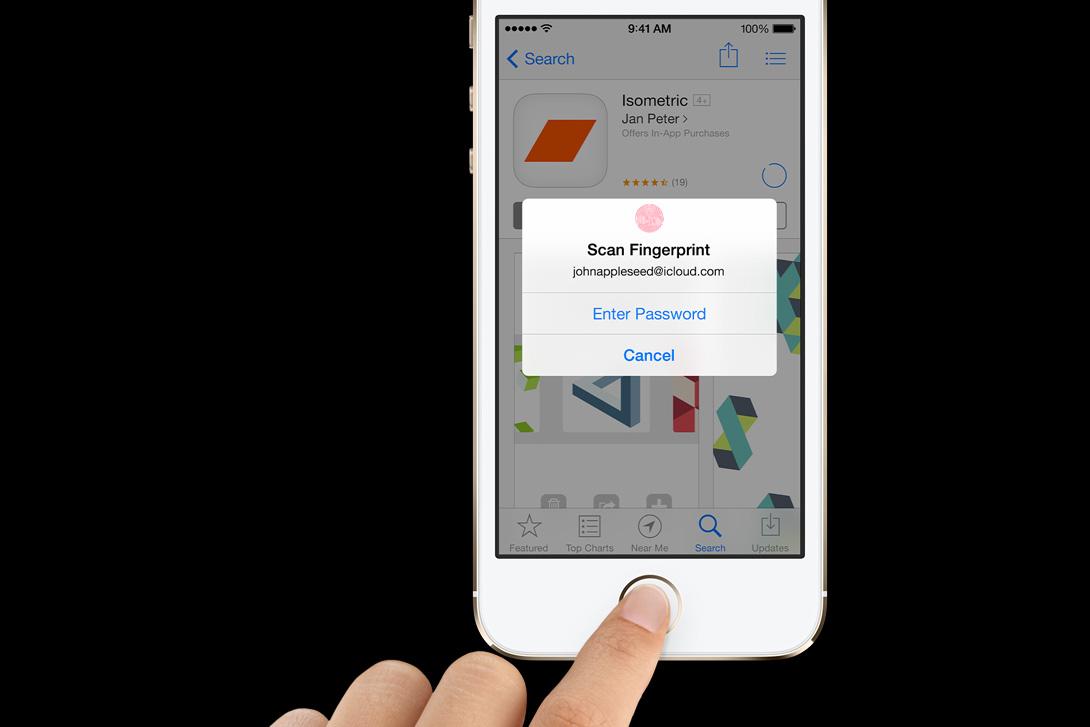
Bug: Touch ID not working for iTunes purchases
Apple was quick to address this issue with a bug fix. The problem was that the iPhone 5S would not accept the user’s fingerprint to authenticate an iTunes purchase and would insist on them entering their password.(Editor’s Note by Jeffrey Van Camp: On our iPhone 5S unit, we do have to enter a password every 5-10 purchases. This is annoying, but appears to be intended for security purposes. Hopefully Apple will lax up on passwords more in the future.)
Solution:
- This was fixed in the 7.0.1 update. Make sure you have it by going to Settings > General > Software Update on your iPhone 5S. You can also hook up your iPhone 5S to your computer and check under Devices in iTunes and then tap Check for Update.
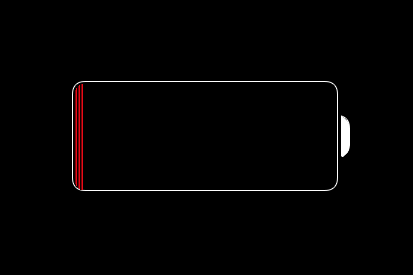
Glitch: Overheating and battery drain
A few people have reported their iPhone 5S overheating. This is usually related to the battery and goes hand-in-hand with rapid battery drain. In rare cases it could be caused by a hardware fault, but it’s more likely to be iOS 7 and/or a specific app. There are a couple of things worth trying to identify and fix the issue.Potential solutions:
- Press and hold the Sleep/Wake button and the Home button to reboot your iPhone 5S and then pay close attention to what you are doing when it next overheats. You might be able to identify the app or service causing the problem. You could also try an app like System Activity Monitor ($2) to see if you can find the culprit.
- Backup and restore your iPhone 5S and then be choosy about what you reinstall on it.
- If you still can’t find the problem then head to an Apple Store to make sure there’s no hardware fault.
Problem: Microphone not working
A lot of people have run into issues with the microphone not picking up their voice clearly. They can’t record voice notes in a specific app, or they can’t be heard during calls. There are a couple of possible causes for this.Potential solutions:
- Make sure that you have removed the protective film from the screen.
- If the problem is with a specific app then make sure it has permission to use the microphone in Settings > Privacy > Microphone.
- It’s possible that your case is interfering with the noise cancelation feature. Try using the iPhone 5S with the case off, or head into Settings > General > Accessibility and turn Phone Noise Cancelation off to see if it makes a difference.
- If your problem persists, contact Apple customer service.




Setting > phone> number not reflected
ReplyDeleteMessages received but can't be sent