Monday, December 2, 2013

CHRISTMAS AND NEW YEAR GREETINGS 2

May peace be more than a season...may it be a way of life.
    
    May you discover the magic of Christmas all over again.
    
    May your Christmas dreams...always be filled with magic! Merry Christmas
    
    Merry Christmas - And Bust Wishes for a Happy New Year   

May the Christmas holidays bring you all your favorite things.
    
    May the spirit of Christmas remain in your home throughout the new year
    
    May your Christmas be merry and your new year prosperous.
    
    May your heart be filled with joy in the miracle of the first Christmas

    May the Christmas be a time of laughter and real enjoyment for you! Best wishes.


May you have the best Christmas Eve!

May the joy of Christmas be with you throughout the year!

May the glow of Christmas candle fill your heart with peace and pleasure and make your New Year bright. Have a love filled Christmas and New Year!

May the bright and festive glow of Christmas candle warm the days all the year through! Hope you will have a wonderful time enjoying Christmas Day and wish you a New Year that is happy in every way.

May your Christmas be filled with special moment; warmth, peace and happiness, the joy of covered ones near, and wish you all the joys of Christmas and a year of happiness.

May the beauty and joy of Christmas remain with you throughout the New Year!

May who say that Christmas Day will come around forget and forgive the unpleasant bygones. Touch hands.

May Christmas and the new year be filled with happiness for you.


"A Merry Christmas and a Happy New Year to You"
    Wishing you joy in this season of lighting candles - At both ends! Merry Christmas

"A Merry Christmas and a Happy New Year to You"
    Wishing You Christmas Cheer - One of the joys of Christmas is remembering special people like you! Merry Christmas

"A Merry Christmas and a Happy New Year to You"    
    Wishing you harmony and love - At this special time of year!

"A Merry Christmas and a Happy New Year to You" was printed on the first Christmas card.


Happy Holidays - Best wishes to you in this season of merriment

For You - May this holiday season bring a song to your heart and joy to the world ! Merry Christmas
    
Christmas Blessings - Wishing you the Gladness of Christmas, which is Hope, The Spirit of Christmas,
     which is Peace, The Essence of Christmas, which is Love.
      
Have a Merry Old Christmas - May your celebration be trimmed with the love of family and the laughter of friends.



CHRISTMAS AND NEW YEAR GREETINGS

 May all your Christmas dreams come true.
    
    May you keep the magic of Christmas in your heart and in your dreams all year through. Merry Christmas
    
    May your home be warm with Christmas cheer... your new year bright with Christmas memories.


May each moment of your year have a beauty all its own. Season's Greetings
    
    May the spirit of Christmas enfold you in its peace. Merry Christmas
    
    May the wonder that is Christmas touch the child within your heart. Warmest Christmas Greetings
    
    May your holiday be wrapped in happiness...and tied with love! Merry Christmas


" Merry Christmas and  Happy New Year to You"
     May you discover every gift...this wondrous season has to offer!

   
Merry Christmas and happy new year to you! 
    May the Blessings of Christmas be with you today and always.


Merry Christmas and happy new year to you!
    May the closeness of friends, the comfort of home, and the unity of our nation, renew your spirits this holiday season


Merry Christmas and happy new year to you!
    May the Good Lord fulfill you with His promises and bestow on you His many blessings


Merry Christmas and happy new year to you!
    May the Holiday Season bring only happiness and joy to you and your loved ones.


Merry Christmas and happy new year to you!
    May the Joy and Peace of Christmas be with you now and throughout the new year.


Merry Christmas and happy new year to you!
    May the peace and joy of the holiday season be with you throughout the coming year.


Merry Christmas and happy new year to you!
    May you have the gift of faith, the blessing of hope and the peace of His love at christmas and always.


Merry Christmas and happy new year to you!
    May Peace be your gift at Christmas and your blessing all year through!


Merry Christmas and happy new year to you!
    May peace, love and prosperity follow you always.
 

Merry Christmas and happy new year to you!
    May Jesus be the Light - Of your Christmas celebration!


Merry Christmas and happy new year to you!
    May the meaning of Christmas be deeper, its friendships stronger, and its hopes brighter
         as it comes to you this year. Merry Christmas and a Joyous New Year

Merry Christmas and happy new year to you!    
    May the spirit of Christmas live in your heart forever. Merry Christmas, With Love

Merry Christmas and happy new year to you!    
    May your Christmas cheer - Run throughout the year!

Merry Christmas and happy new year to you!
    May a melody of joy...fill your Christmas with song! Have a Harmonious Holiday
    
    May your Christmas be merry - And your New Year bright!

CHRISTMAS GREETINGS

    Merry Christmas and all the best in the New Year.

    Merry Christmas and Best Wishes for a happy new year

    Merry Christmas and Happy New Year

    Merry Christmas May God bless you richly throughout this holiday season. 

    Merry Christmas - May you enjoy all the sights and sounds of a wonderful holiday.
    
    Merry Christmas - Wishing you a never-ending season of peace. Warmest Holiday Wishes

    Merry Christmas - Wishing you a most memorable holiday season.
    
    Merry Christmas, Across the Miles - Thinking of you this time of year! 
         Although we're apart /May you have a world of joy /And a song within your heart!
    
    Merry Christmas - May you enjoy all the sights and sounds of a wonderful holiday.
    
    Merry Christmas - Wishing you a never-ending season of peace. Warmest Holiday Wishes

    Merry Christmas - May this holiday find you surrounded by those you love.
    
    Merry Christmas - May your holiday be filled with treasures such as these bright, twinkling lights upon your tree, the warmth of friends and family.
    
    Merry Christmas and Happy New Year - Man your favorite memories from this Christmas season bring you joy in the year to come!
    
    Merry Christmas to you and all good cheer as friends and family gather near. Happy Holidays

    Merry Christmas - May the magic of believing be this Season's gift to you.
    
    Merry Christmas - May your heart (and your stocking) be filled to overflowing!
         
    Merry Christmas - Best wishes for a warm and happy holiday season.
    
    Merry Christmas - In the years to come, may your every recollection of this season be a happy one!
    
    Merry Christmas from All of Us - Though Christmas comes but once a year, we often think of you and hope that every happiness is yours the whole year through!

    Merry Christmas - May the season's simple joys warm your heart... fill your home... last a lifetime
    
    Merry Christmas - Wishing you a season of sweet remembrances.
    
    Merry Christmas and Happy New Year
    

Friday, November 29, 2013

. Focus on Feelings First

slideshare.com

Be thankfulfor customers who complain. You still have the opportunity to make them happy.

  • 8. Treat every customeras though they were your favorite celebrity, hero, friend, neighboror your grandma.
  •  Imagine that each customeris wearing a sign that says “Make me feel important.” 
Pretend your next customeris a mystery shopper ready to reward you with $1000 for providing superior service. 

  •  That’s Interesting…
  •  That’s Interesting… #1 Tell Me More
  •  That’s Interesting… #2Why would you Do That?
  • That’s Interesting… #3Why would you Say That?
  •  That’s Interesting… #4Why would you Ask Me That?
  •  
  •  
  • 21. • Go into computer mode. − Don’t take the Bait
  • 22. • Go into computer mode. − Don’t take the Bait − Speak generally, without Emotion
  • 23. • Go into computer mode. − Don’t take the Bait − Speak generally, without Emotion − Be an Automated Response System
  • 24. • Go into computer mode. − “People get irritated when they don’t immediately get the help they need.”
  • 25. • Go into computer mode. − “People get irritated when they don’t immediately get the help they need.” − “It’s very annoying to experience a delay in service response.”
  • 26. • Go into computer mode. − “People get irritated when they don’t immediately get the help they need.” − “It’s very annoying to experience a delay in service response.” − “Nothing is more distressing than feeling like you’re being passed around when all you want is help.”
  • 27. • Go into computer mode. − “Have I don’t something to personally upset you?” − "There is no need to yell or be loud to get my attention; I promise to give you that.“ − "I really want to help you, but your foul language is getting in the way."
  •  
  •  
  •  
  •  
  •  
  •  
  •  
  • 33. Get Some Space
  • 34. • Get Some Space − “Why don’t you come in my office where it’s quiet and I can focus on what you’re saying.”
  • 35. • Get Some Space − “Why don’t you come in my office where it’s quiet and I can focus on what you’re saying.” − “Let’s step over here where it’s quieter and I can hear you better.”
  • 36. • Get Some Space − “Why don’t you come in my office where it’s quiet and I can focus on what you’re saying.” − “Let’s step over here where it’s quieter and I can hear you better.” − “Why don’t we step outside so you can have some privacy?” 


  • 71. Don’t throw your co-workers under the Bus.
  • 72. Don’t throw your coworkers under the bus. Leading: “Which part of the bill did they get wrong?”
  • 73. Don’t throw your coworkers under the bus. Leading: “Which part of the bill did they get wrong?” Neutral: “Which part of the bill concerns you?”
  • 74. Don’t throw your coworkers under the bus. Leading: “Which part of the bill did they get wrong?” Neutral: “Which part of the bill concerns you?” Leading: “How did he insult you?”
  • 75. Don’t throw your coworkers under the bus. Leading: “Which part of the bill did they get wrong?” Neutral: “Which part of the bill concerns you?” Leading: “How did he insult you?” Neutral: “What did he say to you?” 
  • 76. Then Don’t Waste a Breath.
  • “I can explain that to you.”
  • “I believe I can help.”
  • “Let’s walk through the Rules & Regulations together.”
  • “Why don’t you ask me questions, and I’ll help you understand.” 


  • 81. Be There to Help.
  • 82. Be there to Help.- “The employee’s manager will talk to him and ensure this situation doesn’t recur.”
  • 83. Be there to Help.- “The employee’s manager will talk to him and ensure this situation doesn’t recur.”- “We’ll make a note on your record and ensure that this doesn’t happen again.”
  • 84. Be there to Help.- “The employee’s manager will talk to him and ensure this situation doesn’t recur.”- “We’ll make a note on your record and ensure that this doesn’t happen again.”- “Our truck will be at your home first thing in the morning.” 

  • 85. Offer Solutions.
  • 86. Offer Solutions. When you can’t repair the problem as soon as your customers want, play up the positive side of what you’re doing. 


90. Dear Customer:Thank you for notifying us of your complaint. We strive to provide you withthe best possible service, and when you feel that it fails to meet yourexpectations, it’s important for us to know.We’re sorry that you received service that prompted you to contact us with acomplaint, and we regret any inconvenience or frustration that yourexperience has caused you. To ensure that our staff conducts itself in amanner that reflects the high regard that we have for our customers, we’venotified the proper department of your complaint.Your patronage is important to us, and we hope that you’ll continue to give usopportunities to serve you.Thank you again for bringing these matters to our attention.Sincerely,

 LAST•Listen•Apologize•Solve•Thank 


  • 6. Listen- “I know you’re upset; I’m here to help you.”
  • -“I understand what you mean.”
  • ”-“I see what you’re saying.”
  • -“That’s an interesting point.”

  • 100. Listen Phrases to Avoid
  • 101. Listen Phrases to Avoid- “I don’t want to argue with you.”
  • 102. Listen Phrases to Avoid- “I don’t want to argue with you.”- “Let’s discuss this peacefully.”
  • 103. Listen Phrases to Avoid- “I don’t want to argue with you.”- “Let’s discuss this peacefully.”- “I’m sure we can come to an agreement quickly if…” 
  •  ApologizeBe careful not to over-apologize. You risk making the situation worse than it is, alienating customers even more and possibly setting yourself up for a lawsuit. 
  • 118. SolveShow why the problem occurred, whether ornot the complaint was valid.
  •  “You have the same name as one of our other customers, and our system confused the two.”
  • “We never received your address change form, and your coupons/notice went to the wrong address.”
  •  “This never happened before so we couldn’t anticipate it.”

  • 22. SolveDiscuss Objective Evidence- “According to your Bylaws, you can only...”
  • 123. SolveDiscuss Objective Evidence- “According to your Bylaws, you can only...”- “The Rules & Regulations require that we take those steps to avoid....”
  • 124. SolveDiscuss Objective Evidence- “According to your Bylaws, you can only...”- “The Rules & Regulations require that we take those steps to avoid....”- “Our customers indicated that they would prefer if we…”
  • 125. SolveDiscuss Objective Evidence- “According to your Bylaws, you can only...”- “The Rules & Regulations require that we take those steps to avoid....”- “Our customers indicated that they would prefer if we…”- “I understand your point; however, the Bylaws require that I…” 

  • 26. SolveForward-Looking Phrases- “Every situation has downsides, I agree. Now tell me what you think we can do about them.”
  •  “We’ll address each of those issues when they come up.”
  •  “We’ve addressed each of those drawbacks in previous projects, so we have plenty of solutions we can apply.” 


Tuesday, November 26, 2013

handset related query

Customers in Germany are reporting the network problems while using iPhone 4S. This particular issue arises when an already activated micro-SIM card (For example, from the iPhone 4), which is protected by a PIN, is placed in the iPhone 4S. The problem is not related to any disruptions in network or a defect in the SIM card and the abnormality is observed by all network providers and is not a telecom-specific problem. Tea-Mobile is working with Apple and has provided a temporary solution, till the Apple pushes an update to mobile operating system iOS 5.

How to disable the PIN code request of micro-SIM used in iPhone 4S

Step 1: Select the Startup Screen “settings” and then “Phone”
Step 2: Choose menu “SIM PIN”
Step 3: Move the slider to off (0)
Step 4: You will be prompted to enter the PIN. Enter your four-digit PIN and confirm by pressing “Done” at the top.
Step 5: Now you can see, the PIN code request is turned off for your Micro-SIM.
Step 6: Set this now into your new iPhone 4S.


Answers to some of your questions if your phone freezes, locks up, or becomes unresponsive
There are a number of reasons why your Samsung Galaxy S II may freeze or become unresponsive, including:
  • Unstable application
  • Low internal memory
  • Multiple applications or widgets running at the same time
  • Your Samsung Galaxy S II software may need updating
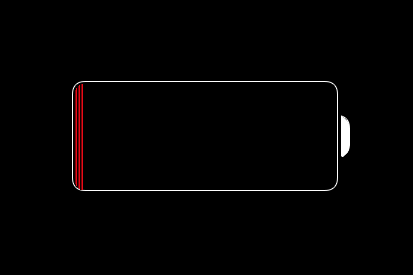
  • Why is my Phone battery life inconsistent?
    How fast your battery runs down depends on what you do on your Apple iPhone 5. Features like Bluetooth®, GPS, games and web browsing put more strain on the battery than simple features like voice calls and text messages.
  • How can I conserve my Phone battery life?
    You can lower screen timeout and brightness, turn off idle radios and apps, use Wi-Fi whenever available, and limit your email updates and application notifications.

BBM for iPhone update fixes crashing issue on iOS 7.0.3

That was quick! BlackBerry has just released an update for BBM for iPhone to fix the compatibility related issues reported in iOS 7.0.3.
The update also brings features such as Contact Categories, list sorting and filtering in BBM Groups and performance improvements.

Here’s what’s new in BBM 1.0.2:
  • Contact categories
  • List Sorting and filtering in BBM Groups
  • Performance improvements
  • Bug fixes
If the app hasn’t been automatically updated, you can download the update via the Updates tab in the App Store app or use this iTunes link.
Let us know if it has fixed the crashing issues in the comments below.


iphone 4 reception issues - design related?

When the guy holds the iPhone in his hands, touching the outside antenna band in two places, he drops reception. Placing the phone down gets him 4 bars


1. How to solve the iPhone 5 Wifi connection problems
Plenty of iPhone 5 users have encountered the Wifi connection problems. They reported it is hard for their iPhone 5 to connect specific Wi-Fi networks. The connection is unworkable or unstable. Even if users stand next to the routers, they found signal strength is too low to do the connecting. But when they change to other handsets to do the Wi-Fi connection, it works well.
Solutions: The awful Wifi signal problem may be caused by the iOS bugs which engender the bad connecting speed or failed entrance of iPhone 5’s Wifi radios. Hence, Apple launched the iOS 6.0.2 to help fix the bug. If you still meet the Wifi connection problems, you can try to restart the phone. Holding down the Home button as well as the Lock button together for several seconds, you will find the Apple logo then the iPhone restarts. After restart iPhone 5, try again to do the Wi-Fi connection.
If the Wifi problem is still unsolved, please try the optional solution
by going to Settings> Wi-fi > Blue icon nearby the network you are trying to connect > Scroll down the bottom > Set the HTTP Proxy to Auto. (Make the URL item blank)
2. Solutions to the iPhone 5 home button problems
The frequent irresponsive home button problems trouble lots of iPhone 5 owners. They are annoyed much by the problems and complain it constantly. Also, the iPhone 5 home buttons are worn out easily by long-term usage.
Solutions: If the iPhone 5 home buttons break accidentally, you can take the phone to Apple Store to get it repaired or replaced when your phone is under warranty. If your phone is out of warranty and you need to use the phone in urgency, you can try the following solution: go to Setting > General > Accessibility > Assistive Touch and turn it on. A small circle will show up on the screen. After you tap it, these options Home, Siri, More and Favorites are accessible and allow you to bypass the home button.

3. How to handle unworkable power button issues
Many iPhone 5 users are tired of the power button issues, for the power button does not response well. Sometimes, the iPhone 5 power buttons require multiple pushes to make it workable. Sometime, the power button acts less responsive if you only hold down the right side, while responds normally when you press the left side.
Solutions: This is the smartphone’s hardware problems. Take it to Apple Store to get it repaired if your phone is covered by valid warranty. Or you can take it to the phone carrier to see if they have relative solutions.
4.   How to Avoid the iPhone 5 Scratches Problems
More users reported the scratch problem on the body. The iPhone 5’s anodized aluminum back cover easily suffers scratches than standard aluminum used in other phones. The iPhone 5 rear housing can’t stand normal scratch and the coating of the back panel is easily to be scratched off.
Solutions: Facing the scratch complaints, Phil Schiller – the Apple’s marketing director responded “Any aluminum product may scratch or chip with use, exposing its natural silver color.” Even so, nobody likes to hold a defective handset. To better protect your iPhone 5 from scratching, you are supposed to purchase an iPhone 5 case when you get a new intact iPhone 5 in hand.
5.   Solutions to Overheating and Rapid Battery Drain
A number of iPhone 5 customers reported their iPhone 5 batteries drain very fast and the unit also suffers overheating. Apple claimed iPhone 5 battery can last up to 225 hours in standby condition. But, some were surprised to find their full-charged iPhone 5 batteries lose 40% power within one hour.
Solutions: Usually, batteries will drain fast when they are overused. If you encounter the excessive battery drain issues like this, you are recommended to turn off those apps you don’t use. Or go to Setting>Mail, Contacts and Calendars>Fetch New Data and turn off the Push, then select Manually on the screen. Some users find the setting is helpful to handle the problem of overheating and rapid battery drain. But it means you need to open the email app to get updated emails.
Some users also mentioned the hard resetting solution to the battery issues. Pressing the power button and lock button simultaneously until the iPhone restarts. If it is unworkable, maybe you can try to delete the Exchange account and restart the iPhone 5 to create a new Exchange account.
6.   How to Solve Rattling Issue
People can find posts on the Apple.com forums stating iPhone 5’s rattle problem. These owners lightly shake their devices and find the rattling noise. The noise is annoying and some guess the noise happens due to the loose battery.
Solutions: You can ask professional help by taking your iPhone 5 to Apple store. The workers can fix the unglued battery. Or you can tear down iPhone 5 to do the job by yourself, but please note that disassembling iPhone 5 will void the warranty.
7.   How to Handle the Leaking Light Problem
A number of iPhone 5 users posted to multiple forums claiming the leaked light problem existing on iPhone 5. The lights are leaked out from the top right corner of the screen or the gap around the device’s power connector and antenna. Although the leak is not obvious unless you check it in low light or dim place, from iPhone fanciers’ point of view, it can’t be tolerant for this high-end smartphone.
Solutions: It is a hardware issue. Go to Apple store and look for replacement.
For these above-mentioned issues, related solutions are provided. But Apple supporters will get upset when they encounter these issues or other problems. Anyway, iPhone fans hope the new iPhone 5S comes with these issues worked out. If there are any other issues you don’t want on the iPhone 5S, then please share your ideas with us.


6 problems with iPhone 5S, and how to fix them (including the Blue Screen of Death!)


Bug: Blue screen of death

Some people have run into a dreaded blue screen of death bug which seems to be related to specific apps. If you are using Pages, Keynote, or Numbers and you are in a document editing, then pressing the Home button can cause the iPhone 5S to crash to a blue screen, which is generally followed by a reboot. Some people are reporting this issue with other apps as well, and in severe cases it is causing a reboot loop. There’s a theory that the iPhone 5S is afflicted because it has a 64-bit processor trying to run 32-bit software (it’s the first 64-bit phone). Developers are already updating apps to work with the new processor more fluidly and Apple will likely release an update to fix it at some point, but in the meantime there’s no solution, only workarounds that have worked for some people.
(Editor’s Note by Jeffrey Van Camp: Our iPhone 5S here at DT has rebooted randomly a few times since we got it in September, but we have not experienced a blue screen of death. Apps do crash more frequently, but these are usually apps that haven’t been updated to iOS 7.)
Workarounds:
  • Always make sure you back out of documents before tapping that Home button.
  • Disable iCloud sync for the iWork apps by going to Settings > iCloud > Documents & Data, and sliding Pages, Keynote, and Numbers to off.
  • Try to use apps that have been updated to take advantage of iOS 7. Apple has not updated Pages, Keynote, or Numbers. You can tell 
  • If the problems are constant, or frequent to the point of impeding your experience, please contact Apple customer service.

Glitch: Faulty sensors

A lot of people are reporting that the sensors in the iPhone 5S are wildly inaccurate. We mentioned in our iOS 7 tips that you can access a spirit level (Apple calls it an inclinometer) by swiping left in the Compass app, but it turns out that it’s not working correctly. In fact, the compass, accelerometer, and gyroscope have also been malfunctioning for some people. The level of fault varies, but it does seem to be an issue that’s specific to the iPhone 5S.
(Editor’s Note by Jeffrey Van Camp: We have not had trouble with the sensors on our iPhone 5S, though we do experience occasional ticks in the parallax effect on the home screen, which moves the background of the phone to produce a 3D effect.)
Potential solution:
Your only option right now is to take the iPhone 5S back to the Apple Store and ask for a replacement, but be warned, many customers who have done exactly that are reporting that their replacement iPhone 5S has the same issues. It’s not clear if this is a hardware or software fault. If it is software-related, we expect an update to fix it, but until Apple acknowledges the issue, it’s a mystery.

Annoyance: Noisy and rattling buttons

A lot of people have been complaining about the Home button clicking loudly and the Power button rattling when the iPhone 5S is shaken. People who went to get replacements, or tested other iPhone 5S handsets, found the exact same rattle and click was present. It’s just the way they’re constructed. Some people have reported a louder thudding rattle which could be caused by a loose battery.
(Editor’s Note by Jeffrey Van Camp: From our experience using the iPhone 5S, the Touch ID Home button may have a slightly louder click and the power button does rattle if you put your ear up to the phone and shake, but these problems didn’t bother us. In fact, I never noticed them until I read that others were annoyed by it. As for the battery issue, we have not encountered it, but it is not normal and would be a serious problem.)
Potential solution:
  • Your only real option here is to take your iPhone 5S into an Apple Store and show them. If it is a loose battery then they’ll be able to fix it, if not then you may have to learn to live with the ‘noise.’

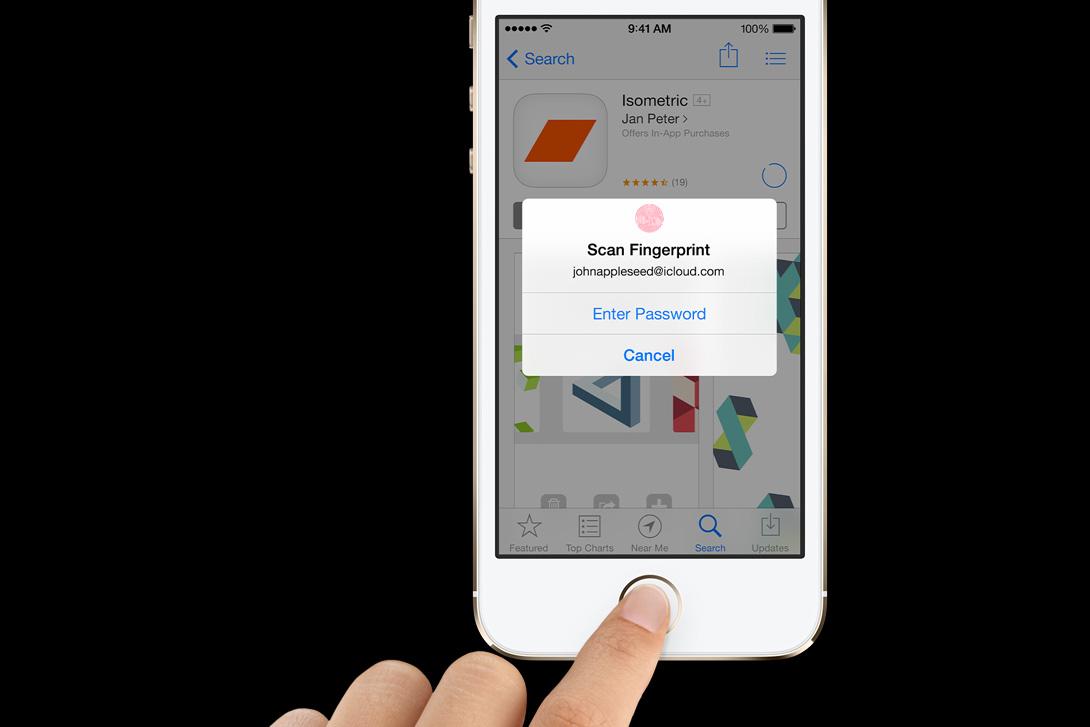
Bug: Touch ID not working for iTunes purchases

Apple was quick to address this issue with a bug fix. The problem was that the iPhone 5S would not accept the user’s fingerprint to authenticate an iTunes purchase and would insist on them entering their password.
(Editor’s Note by Jeffrey Van Camp: On our iPhone 5S unit, we do have to enter a password every 5-10 purchases. This is annoying, but appears to be intended for security purposes. Hopefully Apple will lax up on passwords more in the future.)
Solution:
  • This was fixed in the 7.0.1 update. Make sure you have it by going to Settings > General > Software Update on your iPhone 5S. You can also hook up your iPhone 5S to your computer and check under Devices in iTunes and then tap Check for Update.

Glitch: Overheating and battery drain

A few people have reported their iPhone 5S overheating. This is usually related to the battery and goes hand-in-hand with rapid battery drain. In rare cases it could be caused by a hardware fault, but it’s more likely to be iOS 7 and/or a specific app. There are a couple of things worth trying to identify and fix the issue.
Potential solutions:
  • Press and hold the Sleep/Wake button and the Home button to reboot your iPhone 5S and then pay close attention to what you are doing when it next overheats. You might be able to identify the app or service causing the problem. You could also try an app like System Activity Monitor ($2) to see if you can find the culprit.
  • Backup and restore your iPhone 5S and then be choosy about what you reinstall on it.
  • If you still can’t find the problem then head to an Apple Store to make sure there’s no hardware fault.

Problem: Microphone not working

A lot of people have run into issues with the microphone not picking up their voice clearly. They can’t record voice notes in a specific app, or they can’t be heard during calls. There are a couple of possible causes for this.
Potential solutions:
  • Make sure that you have removed the protective film from the screen.
  • If the problem is with a specific app then make sure it has permission to use the microphone in Settings > Privacy > Microphone.
  • It’s possible that your case is interfering with the noise cancelation feature. Try using the iPhone 5S with the case off, or head into Settings > General > Accessibility and turn Phone Noise Cancelation off to see if it makes a difference.
  • If your problem persists, contact Apple customer service.


benefits of wi-fi

Wi-Fi
Wi-Fi is one of the most underused and useful features on a smartphone, tablet, or a computer.
It's a short-range static wireless connection. Anyone can set up a Wi-Fi network with an Internet connection and a router or a Wi-Fi hotspot.
Some benefits of using Wi-Fi:
  • Preserves battery life: Up to 50% less power when connected to Wi-Fi instead of using a data connection on the Sprint networks.
  • Talk and surf the Web at the same time: With a Wi-Fi connection you can browse the Web and talk on the phone.
  • Improves in-building coverage with faster data speeds.
  • Find Wi-Fi hotspots at public places like shopping centers, cafes, hotels or airports.
  • Traveling internationally: Wi-Fi capability is a must-have to get access to email and other applications.
  • Easy connectivity to Wi-Fi networks: Even though Wi-Fi offers static coverage to a specific area, you can connect to Wi-Fi networks without needing to re-enter the settings each time.

preposition


Addition

Again, Along with, And, And then, Another, Apart from, Also, As well as, Besides, Besides which, Equally important, First, Second, etc, For example, For instance, Further, Furthermore, In addition, In addition to, likewise, / Additionally / An additional, Furthermore, Moreover, Not to mention, Not only,
Next, Nor, One could also say, Too, what’s more
Finally, Incidentally, lastly

Agreement

Of course, Admittedly, It is true that,
Certainly, No doubt

Clarrification

For instance, In other words, Put another way, That is.

Comparison

After all, Another way to view this, As, Also, At the same time, Balanced against, By and large, by and large, By comparison, Compare, compare(d) to / with ,
In comparison, in a like manner, in like manner, in a similar manner ,In the same way, In the same manner, Just as , Just like , Like, Likewise Meanwhile, Not only...but also , Same as , Similar to , Similarly, Simultaneously, whereas
like, while

conditional

as long as, even if, if, one condition that, provided(that), providing(that)
so long as, unless, whether......or

Contrast

In theory… in practice…
A different view is, after all, although, Although this is, And, And yet. apart from,
Balanced against, But, but at the same time, By (way of) contrast
Conversely, Despite, despite the fact that, Differing from, even if, even so, even though, except that, for all that, However, in comparison, In contrast, In fact, in reality, in spite of, in spite of, in spite of the fact that, instead, then, much as, Nevertheless, Nonetheless, Notwithstanding, nor, not that, On the other hand, On the  contrary, though,
Otherwise, regardless, still, true, Unlike, While, while this is true, whilst, Whereas, yet, 

Concession (indicates that the previous view is accepted with reservations):

Admittedly, After all, All the same, Although, although true, Altmay be truehough this, and yet, At the same time, Besides, Despite, Doubtless, Even if/though, Even so, granted perhaps, However, In spite of, Naturally, Nevertheless, No doubt, Nonetheless, Notwithstanding
of course, Only, Still, Under certain circumstances, Up to a point, While, Yet , 

CONCLUSION

Accordingly, Consequently, Finally, Ultimately
All in all, Altogether, As a result, As shown, Hence, In brief, In conclusion, In other words, In particular, In short, In summary, On the whole, To conclude, That is, Therefore, Thus So, To summarise, Summing up.

Emphasis

Again, As a matter of fact, For this reason, In fact, Indeed , In fact Particularly / in particular , To emphasize, To repeat
Admittedly, Clearly, Especially, Generally, Importantly, Obviously, truly, Undoubtedly.

Example

As an illustration, For example, For instance, Indeed, In fact, In other words, In particular, Including, Such as, That is (ie),
To demonstrate, To illustrate, In particular, , , , In this case, Take the case of, One example of this is, On this occasion,
Especially, Frequently, incidentally, Namely, particularly, Specifically. 

Manner

As, As if, As though, In a way, In the way, Just as, like, Much as, The way
Opposite idea or show exception:
Alternatively, In contrast, On the other hand
But, In spite of, Still
Despite, Instead, Whereas
Even though, Nevertheless, While
However, One could also say, Yet
Purpose
In case, In order, In order that, In order to, So, So as to, So that, to. 

Place/ Location

Above, Across, Adjacent, Adjacent to, Against, Along, Among, Around, At the side, Away from, Behind, Below, Beneath, Beside, Between, Beyond, By, Down, Elsewhere, Farther on, Here, Inside, Into, In front, In the background, In the distance, In the foreground, Near, Nearby, Off, On the other side, Onto, Opposite to, Outside, Over To the left, To the right, There, Throughout, Under,
Away from, At the side, In the back, In back of, In the distance, In the front, On top of, To the right, To the left/right, To the east/west/north/south.

Reason

As , as a result of, For, given that, in case, in view of the fact, Because , Because of, Due to / due to the fact that, just in case, on account of, Owing to / owing to the fact that, Since , that, seeing as/ that, considering.

Result

So , accordingly, and so, As a result , As a consequence (of) , because of, Consequently , Due to, due to this, else, or else, for this/that reason, Hence , in order that, now, otherwise, so, so that, then, Therefore ,Thus, the consequence is, the result is, This means that, consequently.

Reformulation (expresses something in another way):

Better, In other words, In that case, Rather
That is, That is to say, To put it (more) simply
Replacement (expresses an alternative to what has preceded):
Again, Alternatively, Another possibility would be, Better/worse still
On the other hand, Rather, The alternative is.

Show cause and effect

And so, Consequently, Therefore
As a consequence, For this reason, Thus
As a result, Hence
Then, Because, Consequently, Hence, For this purpose
Since, Accordingly, Therefore, Thereupon, Thus, To this end. 

Sequence

After, Afterwards, Also, Another, And then, At this point, At this time, Before, First of all, Followed by, Further / furthermore, In the first place, In the second place, In the third place, In addition, In conclusion, last, Meanwhile, Moreover, Next, To begin with, To summarise,
First / firstly, second / secondly, third / thirdly etc ,
The former, … the latter
The first point is
The following
Concurrently , Eventually, Finally, Lastly, Previously, Simultaneously, Subsequently, Ultimately.

Summarising

As a result, As shown, By and large, In brieft, In other words, In short, In a nutshell, In conclusion, To conclude, Therefore, Thus
Consequently, In summary, To conclude
Finally, On the whole, To summarise
Hence, Summing up, Ultimately.

Time

About, After, After a few hours, After a while, Afterwhich, Afterward, Afterwards, After a short time , And, As, As long as, As soon as, At, At last, At length, At that time, At the same time, At this point, At this time, At which(point) , Before, By the time, During, Earlier, First, Following, In the future, In the meantime, In the past, Later, Meanwhile, Next, Prior to, Next week, No sooner, Now, Once, Since, So far, Soon, Soon after, The moment, Then, Thereafter, Till, Today, To this day, Until, Until now, When, Whenever, Whereupon, while
Currently, Eventually, Finally, Formerly, Hardly, Immediately, Initially, Lately, Presently, Previously, Recently, Shortly. Simultaneously, Subsequently, Temporarily.

Monday, November 25, 2013

Troubleshoot issues related to email on your phone

This article helps troubleshoot email issues on your Apple iPhone 5.
You may have email issues if you're unable to:
  • Send emails
  • Receive emails
  • Access the data network

These steps help identify and resolve the underlying cause. After completing each step, test to see if the issue is fixed. If not, continue to the next step.
  1. Verify your Apple iPhone 5 is connected to the network or a Wi-Fi network using Safari.
    Be sure mobile data is enabled. Email requires a data connection to work properly.
    1. From the home screen, tap Safari.
    2. Try to browse to a web page.
    3. If your Apple iPhone 5 is still unable to browse to a web page, troubleshoot data connectivity and then verify email services.
  2. Verify that the email address and password are correct.
    1. Using Safari, navigate to your email provider's website and try to sign in to your email account.
    2. If you're unable to sign in, double-check that you entered the correct username and password.
    3. If you recently updated your email account password, you also have to update the email settings on your Apple iPhone 5.
  3. Double-check that you have set up your email account correctly on your Apple iPhone 5.
    This is the most common scenario and includes all major public email providers such as Yahoo!®, Hotmail®, Gmail?, and AOL®. Many companies provide a Microsoft Exchange email address to their employees.
    • For a personal email address:
      1. If you've already set up the email address on your Apple iPhone 5, try removing it from your device to delete any incorrect settings.
      2. This step doesn't delete any of your emails. It only removes the link to your account for now. Remove an email account from your Apple iPhone 5.
      3. Add your email account to your Apple iPhone 5.
    • For a business email address via Microsoft Exchange?:
      1. Sprint recommends that you contact your IT department for the correct setup information. You'll need your server address, domain, username, and your corporate password. After you have this information, set up the Microsoft Exchange account. If your Exchange account still doesn't work, contact your corporate IT department for more help.
  4. Perform a soft reset.
    A soft reset reconnects your Apple iPhone 5 to the telecom network.
    1. From the home screen, press and hold the Power key and the Home key.
    2. Release the Power key and the Home key when the Apple logo appears.
    3. Your Apple iPhone 5 restarts.
    4. Test your device to see if the issue is resolved.
Note: To optimize device performance, be sure your Apple iPhone 5 is running the most recent device software. Check for software updates.
If you're still having issues, please try our community pages for the Apple iPhone 5 or contact Sprint Customer Care for more help.


This article helps you troubleshoot data connectivity issues on your Apple iPhone 5.
You may have data connectivity issues if you're unable to:
  • Connect to the Internet
  • Browse websites
  • Send or receive multimedia messages
  • Load Internet content within applications
  • Send or receive email

These steps help identify and resolve the underlying cause. After completing each step, test to see if the issue is fixed. If not, continue to the next step.
  1. Verify airplane mode is turned off.
    Airplane mode is a feature that prevents your device from sending or receiving a wireless transmission.
    1. From the home screen, tap Settings.
    2. Tap the Airplane mode slider to OFF.
  2. Verify that mobile data is enabled.
    1. From the home screen, tap Settings.
    2. Tap Cellular.
    3. Next to Cellular Data, tap the toggle switch to enable mobile data.
  3. Verify your Apple iPhone 5 is connected to the telecom network using Safari.
    Be sure mobile data is enabled. Some features and applications require a data connection to work properly.
    1. From the home screen, tap Safari.
    2. Try to browse to a web page.
    3. If the data connection fails, update the profile.
    4. Test your device to see if the issue is resolved.
  4. Perform a soft reset.
    A soft reset reconnects your Apple iPhone 5 to the Sprint network.
    1. From the home screen, press and hold the Power key and the Home key.
    2. Release the Power key and the Home key when the Apple logo appears.
    3. Your Apple iPhone 5 restarts.
    4. Test your device to see if the issue is resolved.
  5. Do you know if other customers(of the same network) are experiencing the same problem in the same location?
    • If yes or you don't know: Please contact network Customer Care for help.
    • If no: Please find the nearest network Repair center and schedule an appointment so a Sprint technician can further diagnose the issue.
  6. Temporary solution: Connect to a Wi-Fi network.
    You can connect to a Wi-Fi network as a temporary solution.
    Note: Most Wi-Fi networks have a range of less than 100 feet indoors and up to 300 feet outdoors. Objects between the router and your Apple iPhone 5 may decrease the signal strength.
    Connecting to a Wi-Fi network may also improve battery life.
Note: To optimize device performance, be sure your Apple iPhone 5 is running the most recent device software. Check for software updates.
If you're still having issues, please contact network Customer Care for more help.

This article helps you troubleshoot low internal memory issues on your Apple iPhone 5.
You may have low internal memory issues if your device is:
  • Displaying low memory error messages
  • Unable to install applications
  • Freezing or unresponsive
These steps help identify and resolve the underlying cause. After completing each step, test to see if the issue is fixed. If not, continue to the next step.
Low memory issues arise when you have too many applications on your Apple iPhone 5.
  1. Verify you have adequate memory.
    1. From the home screen, tap Settings.
    2. Tap General.
    3. Tap Usage to view a list of applications, music and photos that are currently consuming system memory.
    4. Try closing an application, and if you no longer use an application, music and photos, try uninstalling or removing them.
    5. Test your device to see if the issue is resolved.
  2. Uninstall unused applications.
    Sprint recommends that you uninstall unused applications when possible. It helps free up internal memory and can improve device performance.
    Uninstall an application.
    Note: Your Apple iPhone 5 comes with some pre-installed applications that you can't uninstall.
  3. Perform a soft reset.
    A soft reset deletes any temporary files and can potentially free up internal memory.
    1. From the home screen, press and hold the Power key and the Home key.
    2. Release the Power key and the Home key when the Apple logo appears.
    3. Your Apple iPhone 5 restarts.
    4. Test your device to see if the issue is resolved.
Note: To optimize device performance, be sure your Apple iPhone 5 is running the most recent device software. Check for software updates.
If you're still having issues, try our community pages for the Apple iPhone 5 or make an appointment at a nearby network Repair center for more help.

This article helps troubleshoot your Apple iPhone 5 slowing, freezing, or turning off unexpectedly. You may have performance issues if your Apple iPhone 5:
  • Performs slowly
  • Freezes
  • Turns off or unexpectedly restarts
  • Displays error messages
  • Is unable to install or update applications

Try each of these steps to see if it helps improve your phone's performance.
  1. Perform a soft reset.
    A soft reset restarts your phone and does not erase any of your content or data.
    1. From the home screen, press and hold the Power key and Home key.
    2. Release the keys when the Apple logo appears.
    3. Your Apple iPhone 5 restarts.
  2. Determine if your phone has low memory.
    1. From the home screen, tap Settings.
    2. Tap General.
    3. Tap Usage.
    4. If your phone has low memory, troubleshoot low memory issues.
  3. Close background applications.
    Some apps continue to run in the background after you exit them. Sprint recommends that you close background applications when you're not using them.
  4. Verify that your Apple iPhone 5 is running the most recent software.
    There may be a software update that improves battery life on your phone. Check for software updates.
If you're still having issues, try our community pages for the Apple iPhone 5 or make an appointment at a convenient network Repair center.


This article helps you troubleshoot data connectivity issues on your Apple iPhone 4.

You may have data connectivity issues if you're unable to:
  • Connect to the Internet
  • Browse websites
  • Send or receive multimedia messages
  • Load Internet content within applications
  • Send or receive email
These steps help identify and resolve the underlying cause. After completing each step, test to see if the issue is fixed. If not, continue to the next step.
  1. Verify your Apple iPhone 4 is connected to the telecom network using Safari.
    Be sure mobile data is enabled. Some features and applications require a data connection to work properly.
    1. From the home screen, tap Safari.
    2. Try to browse to a web page.
    3. If the data connection fails, update the profile.
    4. Test your device to see if the issue is resolved.

  2. Perform a soft reset. A soft reset reconnects your Apple iPhone 4 to the telecom network.
    1. From the home screen, press and hold the Power key and the Home key.
    2. Release the Power key and the Home key when the Apple logo appears.
    3. Your Apple iPhone 4 restarts.
    4. Test your device to see if the issue is resolved.

  3. Do you know if other Sprint customers are experiencing the same problem in the same location?

    • If yes or you don't know: Please contact network Customer Care for help.
    • If no: Please find the nearest network Repair center and schedule an appointment so a network technician can further diagnose the issue.

  4. Temporary solution: Connect to a Wi-Fi network. You can connect to a Wi-Fi network as a temporary solution.
    Note: Most Wi-Fi networks have a range of less than 100 feet indoors and up to 300 feet outdoors. Objects between the router and your Apple iPhone 4 may decrease the signal strength.
    Connecting to a Wi-Fi network may also improve battery life.
Note: To optimize device performance, be sure your Apple iPhone 4 is running the most recent device software. Check for software updates.
If you're still having issues, please contact network Customer Care for more help.


This article helps troubleshoot your Samsung Galaxy S and non-phones slowing, freezing, or turning off unexpectedly.
You may have performance issues if your Samsung Galaxy S® II:
  • Performs slowly
  • Freezes
  • Turns off or unexpectedly restarts
  • Displays error messages
  • Is unable to install or update applications

Try each of these steps to see if it helps improve your phone's performance.
  1. Safely remove your SD card.
    1. From the home screen, tap the Menu key.
    2. Tap Settings.
    3. Scroll to and tap Storage.
    4. Scroll to and tap Unmount SD card.
    5. Tap OK.
    6. Remove the SD card.
  2. Perform a soft reset. 
    A soft reset restarts your phone and does not erase any of your content or data.
    1. Turn your phone off.
    2. Remove the battery. After 30 seconds, reinsert the battery.
    3. Turn your phone back on.
  3. Determine if your phone has low memory.
    1. From the home screen, tap the Menu key.
    2. Tap Settings.
    3. Scroll to and tap Storage.
    4. If your phone has low memory, troubleshoot low memory issues.
  4. Clear the application cache.
    • Clear the application cache on your applications to free up space and improve performance.
    • Be sure you clear only the application cache and not the application data.
    • When you clear the application data, it removes your personal settings and info such as login information and high scores.
    • Clearing the application cache doesn't remove your personal settings or information.
    1. From the home screen, tap the Menu key.
    2. Tap Settings.
    3. Scroll to and tap Application manager.
    4. Scroll to Running.
    5. Tap an application.
    6. Tap Clear cache.
  5. Close background applications.
    Some apps continue to run in the background after you exit them. Sprint recommends that you close background applications when you're not using them.
  6. Verify that your Samsung Galaxy S II is running the most recent software.
    There may be a software update that improves battery life on your phone. Check for software updates.

This article helps you troubleshoot low internal memory issues on your Samsung Galaxy S II.
You may have low internal memory issues if your device is:
  • Displaying low memory error messages
  • Unable to install applications
  • Freezing or unresponsive
These steps help identify and resolve the underlying cause. After completing each step, test to see if the issue is fixed. If not, continue to the next step.
Low memory issues arise when you have too many applications on your Samsung Galaxy S® II or when you need to clear your application cache.
  1. Verify you have available memory using network Zone.
    The Sprint Zone application can help identify the cause of low memory issues.
    1. Access network Zone.
    2. Tap Help.
    3. Tap I Need Help.
    4. Tap More Diagnostics.
    5. Scroll down to Other Diagnostics to view information on Memory and Internal Device Storage.
    6. Tap Memory to view applications and processes that are currently consuming system memory and storage.
    7. Try closing an application, and if you no longer use an application, uninstall it.
    8. Test your device to see if the issue is resolved.
  2. Uninstall unused applications.
    Sprint recommends that you uninstall unused applications when possible. It helps free up internal memory and can improve device performance.
    Uninstall an application.
    Note: Your Samsung Galaxy S II comes with some pre-installed applications that you can't uninstall.
  3. Move applications to the memory card.
    By default, your Samsung Galaxy S II saves all applications to internal memory. To free up internal memory, you can move some applications to the memory card.
    Note: Be sure your memory card has enough space to handle the transfer. You can also consider switching to a higher capacity memory card.
    Move an application to the memory card.
    Note: Some applications must remain on internal memory. If an application on the memory card malfunctions, move it back to your Samsung Galaxy S II internal memory.
  4. Clear application cache.
    Each application has a cache of temporary files that may be taking up memory.
    Try clearing the application cache from your larger applications to free up space.
    Continue to clear the cache on the rest of your apps.
    You may not be able to clear the cache for every application.
    Rarely, an application may not function as expected afterward.
    Be sure you clear only the application cache and not the application data.
    • If you clear the application data, you remove your personal settings and info such as login information and high scores.
    • If you clear the application cache, you don't remove your personal settings or information.
    Clear the application cache.
  5. Perform a soft reset.
    A soft reset deletes any temporary files and can potentially free up internal memory.
    1. Press and hold the Power key, tap Power off, and then tap OK to turn your Samsung Galaxy S II off.
    2. Remove the battery. After 30 seconds, reinsert the battery.
    3. Press and hold the Power key to turn your Samsung Galaxy S II back on.
    4. Test your device to see if the issue is resolved.
Note: To optimize device performance, be sure your Samsung Galaxy S II is running the most recent device software. Check for software updates.
If you're still having issues, try our community pages for the Samsung Galaxy S II or make an appointment at a nearby network Repair center for more help.


This article helps you troubleshoot data connectivity issues on your Samsung Galaxy S II.
You may have data connectivity issues if you're unable to:
  • Connect to the Internet
  • Browse websites
  • Send or receive multimedia messages
  • Load Internet content within applications
  • Send or receive email
These steps help identify and resolve the underlying cause. After completing each step, test to see if the issue is fixed. If not, continue to the next step.
  1. Verify your Samsung Galaxy S® II is connected to the telecom network using network Zone.
    Be sure mobile data is enabled. Some features and applications require a data connection to work properly.
    1. Access network Zone.
    2. Tap Help.
    3. Tap I Need Help.
    4. This automatically checks the voice and data connections.
    5. Tap Update Profile.
    6. Test your device to see if the issue is resolved.
  2. Perform a soft reset.
    A soft reset reconnects your Samsung Galaxy S II to the telecom network.
    1. Press and hold the Power key, tap Power off, and then tap OK to turn your Samsung Galaxy S II off.
    2. Remove the battery. After 30 seconds, reinsert the battery.
    3. Press and hold the Power key to turn your Samsung Galaxy S II back on.
    4. Test your device to see if the issue is resolved.
  3. Do you know if other customers(of the same network) are experiencing the same problem in the same location?
    • If yes or you don't know: Please contact network Customer Care for help.
    • If no: Please find the nearest network Repair center and schedule an appointment so a Sprint technician can further diagnose the issue.
  4. Temporary solution: Connect to a Wi-Fi network.
    You can connect to a Wi-Fi network as a temporary solution.
    Note: Most Wi-Fi networks have a range of less than 100 feet indoors and up to 300 feet outdoors. Objects between the router and your Samsung Galaxy S II may decrease the signal strength.
    Connecting to a Wi-Fi network may also improve battery life.
Note: To optimize device performance, be sure your Samsung Galaxy S II is running the most recent device software. Check for software updates.
If you're still having issues, please contact network Customer Care for more help.